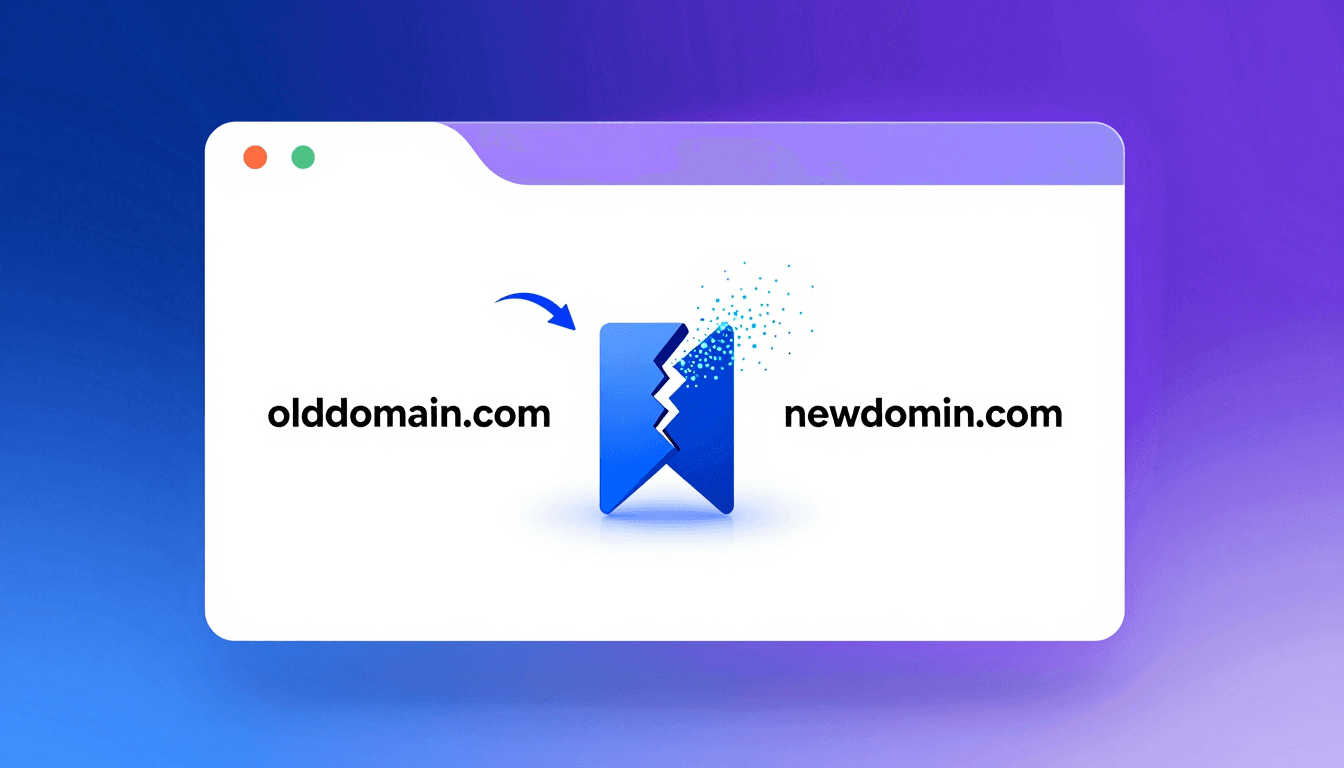
Having a curated list of Google Chrome bookmarks is essential for keeping track of your daily workflows, documentation, and client staging environments. However, websites change, businesses undergo rebranding, and domains migrate. When a company changes its domain name (e.g., migrating from oldbrand.com to newbrand.com), you are left with a folder full of dead, invalid bookmarks.
Manually editing hundreds of bookmarks is tedious and error-prone. In this guide, we will walk you through the options for replacing domains in Chrome bookmarks in bulk—ranging from manual exports and script-based edits to the easiest, automated browser extension method.
Why Changing Bookmark Domains Manually Is a Pain#
Google Chrome has a built-in Bookmark Manager (chrome://bookmarks/), but its editing capabilities are extremely limited.
For each bookmark, you must:
- Right-click the bookmark.
- Click Edit.
- Manually replace the old domain in the URL field.
- Click Save.
If you have 50 or 100 bookmarks scattered across multiple nested folders, this process can take hours. Furthermore, if you make a typo, you might lose access to that resource forever.
Method 1: Exporting and Editing the HTML File (Advanced)#
One way to perform a mass search-and-replace on your Chrome bookmarks is to export them as an HTML file, edit them with a text editor, and then import them back.
Step 1: Export Bookmarks#
- Open Chrome and press
Ctrl + Shift + O(Windows) orCmd + Option + B(Mac) to open the Bookmark Manager. - Click the three dots icon (top-right menu button, next to the search bar) and select Export bookmarks.
- Save the HTML file on your desktop.
Step 2: Search and Replace with a Text Editor#
- Open the saved HTML file in a text editor like VS Code, Notepad++, or Sublime Text.
- Use the Search-and-Replace function (
Ctrl + HorCmd + Option + F). - Set the search target to
http://olddomain.comorhttps://olddomain.com. - Set the replacement to
https://newdomain.com. - Run Replace All and save the file.
Step 3: Import Back to Chrome#
- Go back to Chrome's Bookmark Manager.
- Click the three-dot menu and select Import bookmarks.
- Choose the edited HTML file.
[!WARNING] This method creates duplicate folders. You will need to manually delete the old folders to prevent clutter. Additionally, if the HTML structure gets corrupted during editing, Chrome will fail to import the bookmarks correctly.
Method 2: The Fast and Safe Way with Bookmark Domain Updater#
If you want a native, secure, and instant solution directly in your browser, using a dedicated extension like Bookmark Domain Updater (BDU) is the best choice. It allows you to replace domains in real-time without exporting files or risking data loss.
Step 1: Install the Extension#
Download and install Bookmark Domain Updater from the Chrome Web Store.
Step 2: Create a Domain Replacement Rule#
- Open the BDU extension popup or dashboard.
- Click Add Rule (Aggiungi Regola).
- Enter the Match Pattern:
olddomain.com - Enter the Replace Pattern:
newdomain.com
Step 3: Run the Bulk Update#
- Select the folders you want to update (or choose your entire bookmarks library).
- Click Analyze to preview all bookmarks that will be updated.
- Review the changes and click Apply to run the update instantly.
With BDU, the replacement happens seamlessly in the background, updating Chrome's database directly. No duplicates are created, and your folder hierarchy is perfectly preserved.
Summary of Methods#
| Feature | Manual Edit | HTML Export/Import | Bookmark Domain Updater |
|---|---|---|---|
| Speed | Extremely Slow | Moderate | Instant |
| Simplicity | Easy but tedious | Advanced | Beginner-friendly |
| Risk of Duplicates | None | High | None |
| Regex Support | No | Yes (in text editor) | Yes (built-in) |
| Safety Backups | Manual | Manual | Automatic |
Keeping your bookmarks up-to-date doesn't have to be a manual chore. By using Bookmark Domain Updater, you can handle domain migrations, URL pattern changes, and staging-to-production transitions in just a few clicks.
Install Bookmark Domain Updater for Free to streamline your bookmark workflow today!